Getting an app to work is one thing. Getting it to look right is another. This is how I used Figma MCP to stop guessing at colors and start shipping visuals I actually wanted.
Date
3/11/2016
Background
I'm a Design Lead. During the day I design and make decisions inside a large organization. At night I build AI apps on my own. I write about what I learn along the way — this is the third post in my Vibe Coding series. If you're new here, feel free to check out the first two posts on my homepage.
Let's get into it.
The Problem I Ran Into
After getting the core features working in Claude Code, I hit a wall: the UI looked terrible. Colors felt random, there was no visual identity, spacing was all over the place. No design language whatsoever.
I didn't want to fix this by digging through code one component at a time. And using prompts to tweak visuals meant burning through tokens with no guarantee I'd actually like the result.
So I started thinking: what if I connected Figma directly to Claude Code? The idea was: get the features working first → go back to Figma to define the visual direction → have Claude Code "dress" the app in that visual language.
Around the same time, I heard Anthropic's design director Jenny Wen talk about her workflow — using Figma to define direction, then vibe coding with engineers to build prototypes. That confirmed I was on the right track.
What Is Figma
If you've done any UI design, you know Figma. It's the most widely used interface design tool in the industry right now.
But Figma isn't just a drawing tool. It's where vague ideas become exact values. You're not picking "a slightly darker blue" — you're setting #1E3A5F. You're not saying "add more spacing" — you're typing 16px.
That precision is exactly what gets lost when design and code need to talk to each other.
Other options I considered:
Pencil.ai — great for generating ad creatives and marketing assets, not the right tool for app UI design.
Lovable — you describe what you want and it generates an app end-to-end. Sounds great, but the output is its interpretation, not mine. As a designer with specific visual standards, that "fully automated" approach is actually a loss of control. Plus my features were already working in Claude Code — migrating to a new tool wasn't worth it.
What Is Figma MCP and Why I Chose It
MCP stands for Model Context Protocol. It's a way for external tools to communicate directly with Claude Code. Figma MCP connects Figma so Claude Code can read your design data straight from the file.
Before MCP, there were a few messier ways to pass design info to Claude Code:
Screenshot — Claude Code can only guess at colors and values. Not precise enough for anyone with pixel eyes.
Copy CSS from Figma — Figma exports CSS, but I'm building in React Native for mobile. Different system. Every change needs manual translation.
Dev Mode copy-paste — Better than screenshots, but still manual. Not scalable.
Figma Make — Figma's own AI tool. The problem: when you ask it to make edits, it invents new features and interactions on top of your existing ones. If you pipe that output into Claude Code, you're introducing untested logic into a working app. Too risky.
MCP is the best approach. The core benefit: zero-loss transfer.
Whatever you define in Figma — colors, spacing, button sizes, border radius — Claude Code reads the exact values. Not "an orange," not "roughly this shade." The actual hex. And the connection is live: change something in Figma, Claude Code picks it up next time you ask. You can also push pages from your app back into Figma as editable layers, adjust them there, then sync the changes back to code. Design and code finally have a reliable channel between them.
Before You Start: Set Up Your Foundation
I work features first, then visuals. My app's functionality was already built in Claude Code before I touched any visual design.
Step 1: Consolidate your design tokens into theme.ts
This is the first thing I did, and everything else depends on it.
Before this, colors and spacing were hardcoded across dozens of component files. Changing one background color meant hunting through everything and hoping you didn't miss anything.
I had Claude Code scan all component files, extract every color, spacing value, border radius, and shadow, and consolidate them into constants/theme.ts. One file. Change it once, the whole app updates.
More importantly: when Figma MCP reads your design values, it only needs to update this one file to restyle the entire app.
Prompt to use:
"Scan all component files, extract all colors, spacing, border radius, and shadows, and consolidate them into constants/theme.ts. Only modify theme.ts — don't touch anything else."
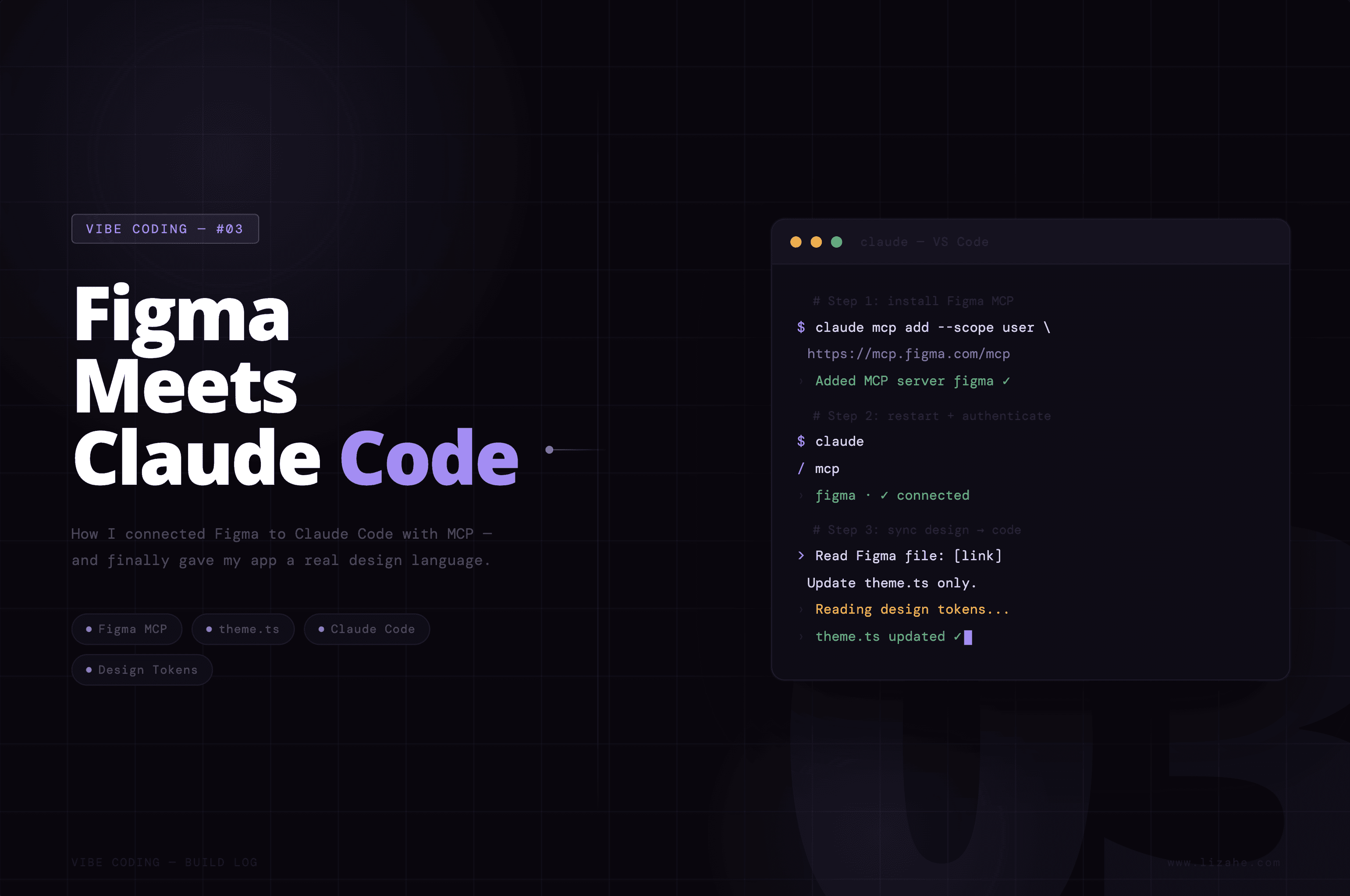
Step 2: Install Figma MCP
Run this in your terminal:
You should see something like:
That means it worked. But you're not done yet — you need to fully restart Claude Code.
If you're running Claude Code in a VS Code terminal, press Ctrl + C to exit. You'll see a normal command prompt again. Then type claude and hit Enter to relaunch. New config only kicks in after a full restart.
Authenticate your Figma account:
Once Claude Code is back up, type /mcp. You should see:
Use the arrow keys to select figma, then choose Authenticate. Your browser will open a Figma authorization page.
Important: Check which Figma account you're logged into. If you have multiple accounts, make sure you authorize with the one that has your design files. Wrong account = no access.
Click Allow Access. Go back to Claude Code, type /mcp again. This time you should see:
Green. You're good to go.
Terminal vs Desktop App: What's the Difference
Both edit the same codebase, but they work differently.
Terminal (VS Code): Works directly on your main branch. Good for when you know exactly what you want to change.
Desktop Claude Code app: Automatically creates a new branch for you. Work there, check the results, merge when you're happy.
For visual iteration, the desktop app is safer. Design changes involve a lot of trial and error — this color doesn't feel right, the spacing is too tight, the last version was actually better. Having a separate branch means you can throw it away and start over without breaking anything. I do all visual exploration in the desktop app and merge back to main once I'm happy with the direction.
The Full Figma × Claude Code Workflow
Step 1: Get features working first
This order matters. It's tempting to design first in Figma and then implement — but until your features are actually running, you don't know what the real page structure looks like. You'll probably redesign anyway. Finish the features, then design.
Step 2: Set up theme.ts
Already covered above. Do this before anything else.
Step 3: Build your design file in Figma
Two approaches depending on where you are:
Start from scratch: Create a new Figma file, reference your app screenshots, and build the design manually. Good if you want a complete visual overhaul.
Export layers from code: Open your app in the browser at localhost:8081, use DevTools to set the display width to iPhone 14 Pro (390px), then have Claude Code send the current pages to Figma via MCP as editable layers — not screenshots. Every element, text block, and color block comes through as a separate layer you can select and modify directly in Figma.
Prompt to export layers:
My app is running at http://localhost:8081.
Please send the following pages to Figma as editable layers: /page-name /page-name
Figma file link: [your link]
Use Figma MCP to send each page as a separate frame.
Before running this, make sure:
Your app is actually running (the browser can open
localhost:8081)DevTools is open, device mode is set to iPhone 14 Pro (390px), and you've refreshed the page
Icons may not transfer correctly — just add them back manually in Figma.
Step 4: Update the design in Figma
This is your home turf. Adjust colors, spacing, font sizes — whatever feels right.
One tip: when naming color styles in Figma, try to match the variable names in your theme.ts. For example, name your background color bg and your brand color accent. That way Claude Code knows exactly which variable to update without you having to explain the mapping every time.
Step 5: Sync changes back to code
Once you've updated the design, send the Figma link to Claude Code and tell it what changed.
Update a single color:
Read this Figma file: [link]
Find the background color on the home page and update Colors.bg in constants/theme.ts.
Only change this one value. Don't touch anything else.
Update card radius and spacing:
Read this Figma file: [link]
Find the border radius and padding on the card component and update Radius.card and the relevant Spacing values in theme.ts.
Only modify theme.ts. Don't touch any functional logic.
Change one thing at a time. Don't ask it to do a full sync — keeping changes scoped makes it much easier to catch problems when they come up.
Step 6: Check it on device
After each update, open the app in the browser or on your phone. Not happy? Go back to Figma, adjust, sync again.
This loop — Figma → Claude Code updates theme.ts → check on device → back to Figma — runs as many times as you need. Each round, the visuals get closer to what you actually want.
Final Thought
Vibe Coding has lowered the barrier to building. Things that used to need an entire engineering team can now be done by one person with AI.
But lower barriers cut both ways. The more people who can build, the less "being able to build" matters on its own.
When anyone can produce, what creates real differentiation is the stuff only humans can do: understanding real people and their actual problems — AI doesn't have that; product judgment — knowing what's worth building, which comes from values and lived experience, not computation; taste and creative point of view — having a real perspective, not just mimicking a style.
These happen to be exactly what designers train for. So I don't think Vibe Coding is a threat to designers. I think it's a kind of freedom — finally, we can look up from the details and focus on what actually matters: understanding people, finding real needs, and building things that mean something.
These first three posts are the entry-level series. Follow along and you'll have a working app with real visual design — something you can actually use yourself. But there's still a gap between "I use this" and "I'm shipping this to the public": app packaging and submission, cloud data storage, payment integration. I haven't written about those yet because I'm still figuring them out. I'll keep documenting as I go. Stay tuned.