The full vibe coding process from PRD to mobile preview — including every mistake I made along the way, and how to avoid them.
Date
3/1/2016
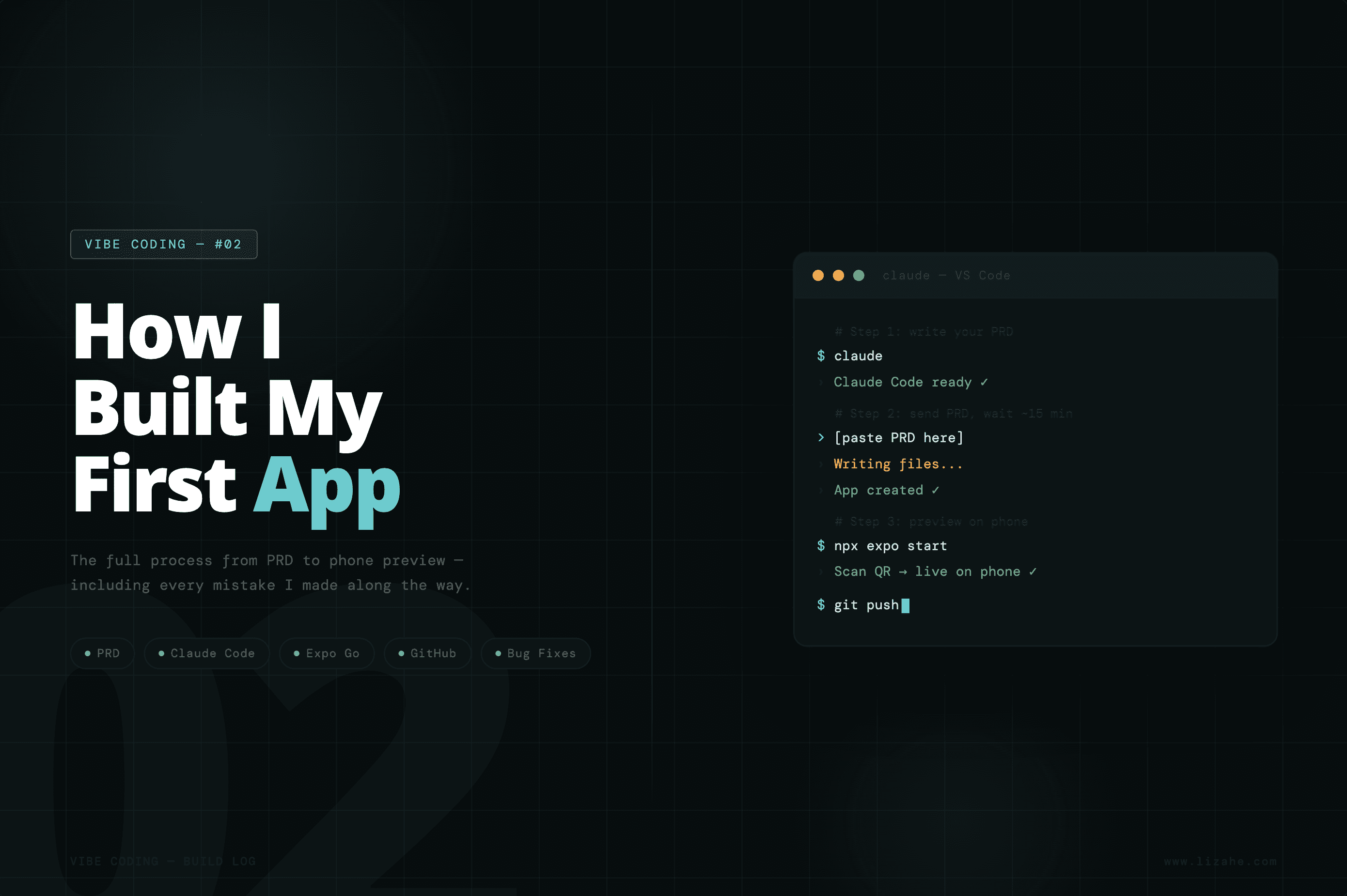
I'm a designer. These days my work leans more toward systems thinking and decision-making than hands-on pixel pushing. I learned a bit of code about 10 years ago and never touched it again. I've collaborated with engineers throughout my career, so I understand the general workflow — but when it comes to actual code, I'm basically starting from zero.
This week I spent 4–5 hours exploring vibe coding — from setting up my environment to previewing a working app on my phone. It felt like witnessing electricity for the first time 💡. Here's everything I went through: the full process, and every mistake worth avoiding.
p.s. Everything I publish is written while I'm still learning. I cross-check the details to make sure they actually work, so you can follow along step by step like a reference guide — and so I can come back to it myself later. I'm writing to help myself, and hopefully to help you too. Feedback welcome. Let's learn together.
What Is Vibe Coding?
Simply put: you describe what you want, AI writes the code.
One key thing: if you're building an actual app, you're not doing it in the Claude chat window. I used Claude Code with the Sonnet 4.6 model, running in the terminal — it creates and edits files directly on your computer.
This distinction matters. A lot of people think chatting with AI counts as vibe coding. It really doesn't.
What You Need to Install
Seven tools total. That sounds like a lot, but it takes about an hour or two to get everything set up. I covered the full installation guide in a separate post — look for "Vibe Coding #01: Before You Build."
Node.js — The runtime environment. Install this first, everything else depends on it
npm — Comes bundled with Node.js, no separate install needed
Git — Usually pre-installed on Mac, just verify it's there
VS Code — Your code editor, where you'll read the code Claude writes
Claude Code — The core tool. This is what actually writes your code
Expo CLI — Creates your app project structure
Expo Go — Install on your phone, scan a QR code, and your app appears instantly
After installing each one, run a quick verification command in the terminal. If you see a version number, you're good.
The Full Process
Step 1: Set Up Your Environment and Connect to GitHub
GitHub is cloud storage for your code — think Google Drive, but specifically for code.
Once you've signed up, you'll need to generate a Token (it acts as your password). Save it somewhere safe. If you lose it, you'll have to generate a new one.
Step 2: Write Your PRD
This is the most important step. Your thinking, your curiosity, the problems you want to solve, your vision for the product — it all lives here.
A PRD is a complete description of your app. It tells the AI exactly what to build.
A lot of people skip this step, or write something vague and loose. The result: AI builds something messy, bugs everywhere, constant back-and-forth asking for big rewrites. All that back-and-forth burns tokens — which means it burns money.
Write it clearly. Here's a rough outline — write your own version first, then ask AI to clean it up. I'd recommend against letting AI write the whole thing from scratch. That's like handing over the steering wheel:
What does this app do?
Who is it for?
What are the core features? (Start with MVP — don't try to build everything at once)
What does each screen look like?
How does the user move through the app?
The more clearly you can describe the user journey in your head — like a director blocking a scene — the more accurate the output will be.
If you can also include the following, even better:
Business model: How does this product make money?
Page architecture: What pages exist, and what's the content direction for each?
Visual style: Color palette, mood, CTA colors, brand colors, etc.
Data strategy: Local storage? How often should data update? Note: pulling data is token-heavy, so think about the frequency.
Step 3: Send the PRD to Claude Code in VS Code
Open your project folder first In the terminal, type: open ~ Finder opens automatically. Find your project folder and drag it into the left sidebar of VS Code. All your project files will appear.
Open the built-in terminal in VS Code Top menu → Terminal → New Terminal A terminal window appears at the bottom. You don't need to switch between apps — do everything from here.
Launch Claude Code In the VS Code terminal, type: claude Press Enter, wait for it to load. When the chat interface appears, you're in.
If you already had Claude Code running and switched away, just click the terminal tab at the bottom of VS Code, find the one running Claude, and click back into it.
Send your PRD Paste your PRD directly into the chat and hit Enter. Claude Code will start reading your requirements and ask a few permission confirmations — just press Y to approve.
One tip: write your PRD in English. Take your Chinese draft and rewrite it in English before sending. Around 95% of Claude Code's training data for programming is in English — English instructions are more precise and produce fewer errors. You'll get a much more solid foundation.
Then just wait. The first version of your app takes about 15 minutes.
Step 4: Preview It on Your Phone
Open a new terminal tab and type:
Open Expo Go on your phone, scan the QR code, and your app appears.
The moment I saw it, I genuinely felt what it must have been like when humans first turned on electric light.
Step 5: Save to GitHub
Once you're happy with what you see on your phone, save this version to GitHub. It's your safety net — if anything breaks later, you can always come back to this point.
In a new VS Code terminal tab (click the + in the terminal panel), run these one by one:
Stages all your changes.
Saves the version with a note (change the text in quotes to whatever makes sense — use English).
Uploads everything to GitHub.
Once it's done, go to github.com, open your project repository, and refresh. If you can see your files, the upload worked.
Build this habit: push to GitHub after every feature, not after the whole app is done. Every small milestone gets its own saved version. That way, if something breaks later, you can always roll back to the last stable state.
Step 6: Refine and Iterate
I'll write a dedicated post on this step, because iteration is one of the most important parts of vibe coding. Beyond thinking like a director and executing your vision, it's the careful back-and-forth refinement that gets you from "it works" to "it's actually good."
Mistakes I Made — So You Don't Have To
❌ npm permission error Run this command and it'll fix itself:
❌ Expo Go asking you to log in You don't need an account. Just skip it — tap "Continue without account."
❌ Terminal suddenly showing Korean Type this into the Claude Code chat:
It won't happen again.
❌ GitHub Token lost or forgotten Go to github.com/settings/tokens, find your old token, and click Regenerate.
❌ Can't find your project folder in VS Code Type open ~ in the terminal. Finder opens automatically — drag your folder into VS Code.
How to Keep Bugs to a Minimum
A few habits that make a real difference:
⚠️ Build one feature at a time Finish it, test it on your phone, confirm it works — then move to the next. Never ask AI to write everything in one go.
⚠️ Be specific with your descriptions "Make a card" isn't enough. Say: "Make a white rounded card with the name on the left, a number on the right, and a green button at the bottom." The more specific, the more accurate.
⚠️ Ask Claude Code to review its own work After each feature, type:
It'll do a self-check and clean things up.
⚠️ Always push to GitHub when you're done This is your most important safety net. If anything goes wrong, you can always go back.
When You Actually Hit a Bug
🔧 You don't need to understand the code Take a screenshot and send it to Claude Code. Say: "This doesn't look right — it should look like X. Please fix it."
🔧 Let it investigate Type:
It'll read through the code and find the cause on its own.
🔧 If you broke something and need to go back In the terminal, type:
Find the last working version number, then type:
You're back.
🔧 If nothing is working Copy the error message and paste it into the regular Claude chat (not Claude Code). Ask it to help you diagnose the problem.
🔧 The nuclear option (This is also why great engineers are still irreplaceable)
Ask your engineer friend to take a look. Fair warning: they will suffer.